The assistant is off until you switch it on. It never leaves your device, never plays anything by itself, and only analyses tracks when you ask. Open it from the sparkles button in the toolbar (⌥⌘I shows or hides it), or choose AI Assistant in the side panel.
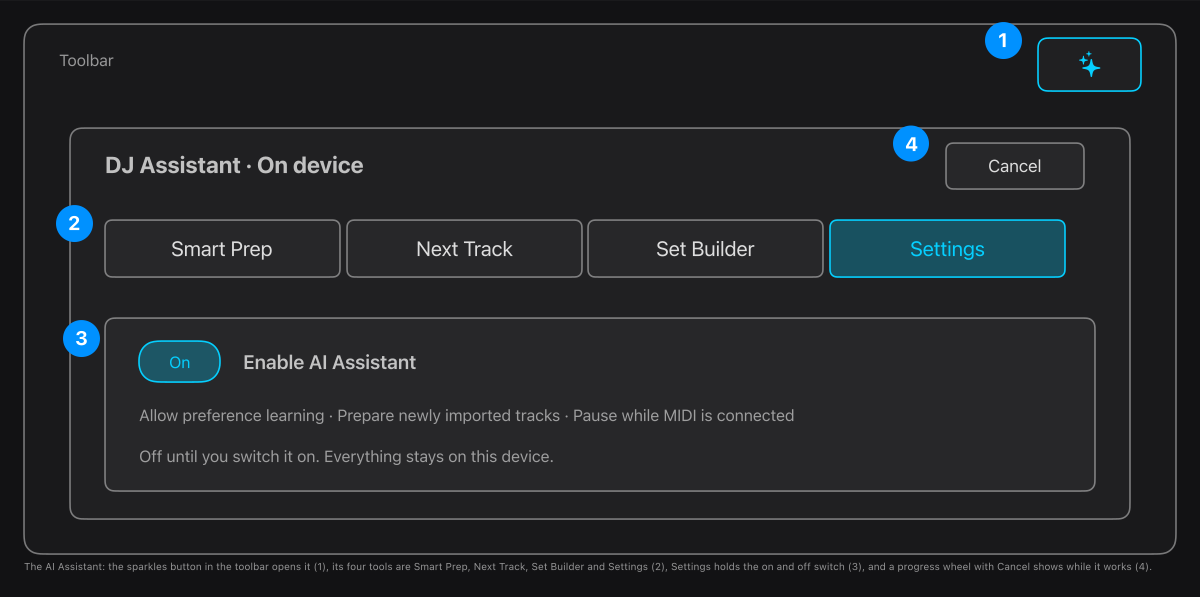
- The sparkles button opens the assistant.
- Four tools: Smart Prep, Next Track, Set Builder and Settings.
- Settings: Enable AI Assistant (off by default), Allow preference learning, Prepare newly imported tracks, and Pause preparation while MIDI hardware is connected. Check availability tells you whether Apple Intelligence can read set requests on this Mac.
- While it works a progress wheel and Cancel appear. Starting playback cancels any work in progress.
Preparation never runs during playback, in Low Power Mode, or when the Mac is running hot, and it never changes a cue, a playlist or a deck without you pressing Accept or Save.
Tip. Everything it suggests is an estimate to check by ear. Section names and scores are measured from the audio, not a promise that a mix is safe: use Set Director to check transitions.