Smart Prep reads the sections of your tracks (the same reading Plan set uses) and proposes hot cues at their main parts. Nothing is saved until you accept it.
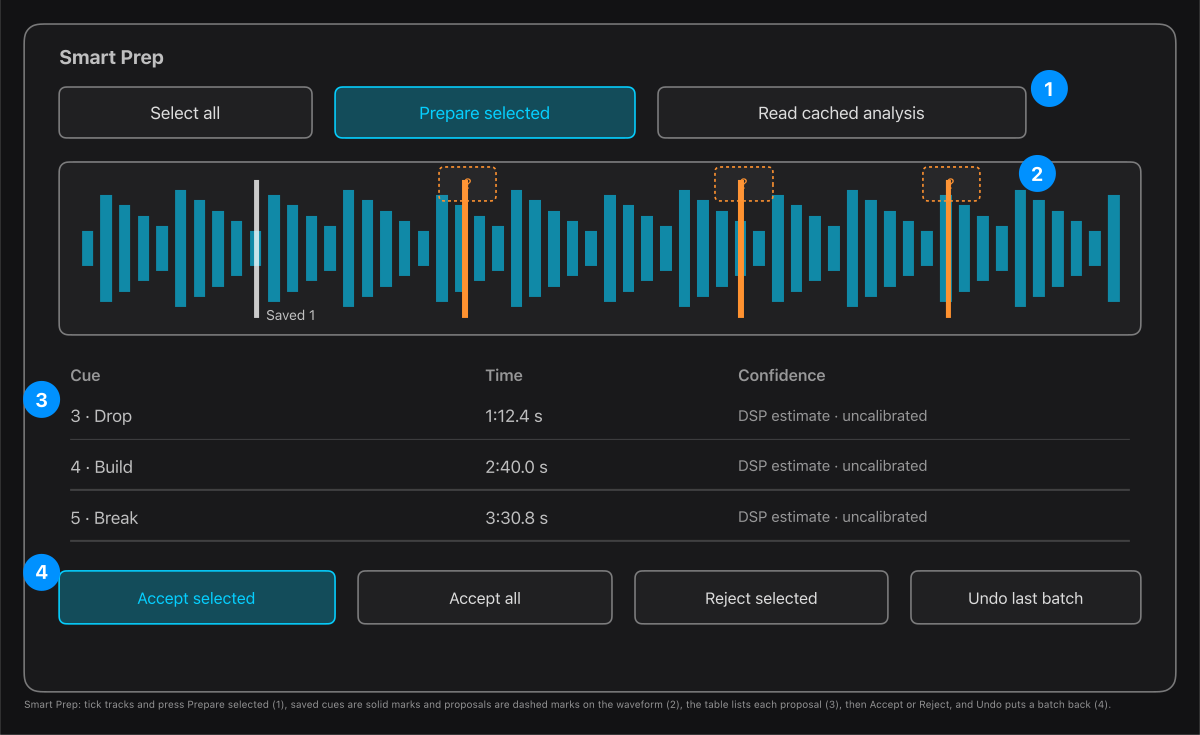
- Tick the tracks, then press Prepare selected. Read cached analysis uses what is already measured and does not analyse anything new.
- The waveform shows your saved cues as solid marks and the proposals as dashed marks. Click a proposal to accept it, or right-click it to reject it.
- The table lists each proposal with its time. Confidence reads DSP estimate: it is a measurement, not a trained score.
- Accept selected or Accept all writes the cues. Undo last cue batch (or Undo selected tracks from last batch) puts them back.
Your existing cues are never overwritten: all 16 slots in both banks are checked before anything is written. A cue you edited after accepting a batch stops that batch from being undone. Slot 2 is left empty because the app cannot tell where vocals begin.
Tip. The names are guesses from the energy of the music. Press the cue on a deck and listen before you trust it.