Before you explore
Pro is required in build 399 to play a deck, use its CUE button or cue-play, set or trigger hot cues from the deck pads, preview a planned mix, and run automatic mixes or Sets.
Library browsing and organisation, analysis, saved Sets, cue-lab cue and loop preparation, saved marks and settings remain available without a subscription. Audio export is also available without Pro in build 399.
This inventory follows build 399’s app screens and Help. Hardware support and optional Apple Intelligence features depend on your device and setup.
Library and music files
Where: Home → Load Tracks; Library
Bring your own music
Load folders containing WAV, AIFF, CAF, MP3 and M4A files. Browse All Tracks, Recently Added, Pending Analysis and source folders.
Find and organise tracks
Search and filter the library. Rows show artwork, title, artist, tempo, key, energy and duration. Missing files are flagged so they can be located again.
Keep originals intact
Removing a source folder removes its library references after confirmation. Your original audio files are not deleted or overwritten.
Prepare either deck
Use Load A or Load B, a track’s context menu or drag and drop to prepare a deck.
Track analysis
Where: Library → Analyse
Tempo and musical structure
Analyse tempo, beats, bars, musical key, loudness and track sections such as intros, builds, drops and outros. Results are saved locally.
Check the grid
Review the detected tempo and beat grid before performing. Correct half-time or double-time estimates and reanalyse when necessary; analysis is an estimate, not a guarantee.
Playlists, Smart Playlists and Sets
Where: Library sidebar; Set Director
Playlists and automatic collections
Build playlists manually or use Smart Playlists with rules such as tempo ranges and analysis status.
Ordered set planning
Build an ordered Mix Queue, plan a full mix or ask for a best order. Planning creates a Set without rearranging the original playlist.
Explicit playback control
Review and save a plan, then choose whether to perform manually or use LIVE DIRECTOR. Saving a Set does not start playback.
Two-deck performance
Where: Performance
Deck A and Deck B
Play and cue two tracks with jog wheels, tempo controls, channel meters and waveforms. Use the jog wheel to nudge timing or scrub through the track.
SYNC and quantize
Use analysed beat grids to align tempo and beats. Quantize helps place cue, loop and jump actions on the musical grid.
Preparation and Performance profiles
Choose how cues behave on a stopped deck, depending on whether you are preparing music or performing.
Hot cues and track preparation
Where: Performance; CUES / LOOP
Named, coloured hot cues
Two banks of eight hot cues provide saved positions in a track. Name and colour cues, with Gate and Slip Gate actions for performance.
Cue and loop timeline
Review cue markers, loop ranges and track sections together. Adjust preparation points before using them in a set.
Loops, beat jump and effects
Where: Performance deck controls
Manual and saved loops
Set Loop IN and OUT, reloop and save loops. Choose beat, bar or phrase loops, including bar lengths from 1 to 32.
Loop performance
Use Loop Roll, change loop length and jump by musical increments to repeat or move through a track.
Tempo-synchronised echo
Choose echo timings including half, three-quarter, one and two beats. Shape feedback and decay, or use echo-out to finish a transition.
DJ filter
Sweep low-pass or high-pass filtering around a neutral centre position. Held loop effects add momentary performance changes.
Mixer and audio levels
Where: Performance centre panel; Mixer
Channel and master controls
Mix with channel faders, crossfader, trim, three-band EQ, filters and a master level control. A separate Mixer view offers another workspace.
Level management
Automatic gain normalisation, manual trim, meters and a master safety limiter help manage level changes.
Headphone preview on Mac
Choose a separate headphone cue device to preview music before it reaches the main output. Available routing depends on your audio hardware.
LIVE DIRECTOR and transition planning
Where: Library → Live Director; Transition Lab
Plan and audition a pair
Inspect phrase alignment, blend length, level curves and bass-swap moves. Read the explanation and audition before accepting a transition.
Edit the arrangement
Move an arrangement by whole phrases and add, move or remove fade-curve points. Review warnings and make the final musical decision yourself.
Whole-set mixing
Run an ordered Set with the Director or take manual control. Conservative fallback transitions help handle unsuitable pairs; results still depend on the source tracks.
Local preference learning
Rate transitions positively or negatively. After enough ratings, local preferences help choose between otherwise suitable plans.
Optional AI Assistant
Where: AI Assistant; Settings
On-device assistance
The assistant is off by default and works when requested. It does not independently start playback.
Smart Prep
Review suggested preparation and cue positions, then approve or reject them.
Next Track suggestions
Rank possible next tracks using tempo, key, energy and sound. Suggestions do not automatically load a deck; a score is not a probability of a safe mix.
Set Builder
Draft a Set using duration, starting and ending tempo and an energy curve. Review the draft before saving or playing. Manual fields remain available when Apple Intelligence text interpretation is unavailable.
Manage preferences
Reset learned preferences and control preparation behaviour in Settings, including pausing preparation when MIDI hardware is connected.
MIDI controllers and mapping
Where: Tools → MIDI Controllers
Connect your controller
Use supported USB or Bluetooth MIDI devices. Select a factory profile automatically or manually, or disable a device.
Learn and customise
Learn, clear or reset mappings for deck playback, cues, tempo, effects, EQ, filters, faders, crossfader and library browsing/loading.
Profiles are starting points
Included controller profiles may need adjustment in-app. They do not guarantee every hardware function. Jog mapping supports nudging rather than vinyl-style scratching; controller lighting and stem-mute functions are not promised.
Optional stem model setup
Where: Stem Separation; Settings
Download only when requested
Stem splitting is optional and off by default. Model setup downloads a machine-learning model from Hugging Face over Wi-Fi or Ethernet, verifies it and stores it locally.
Build 399 limitation
The stem setting is saved but separation is not connected to track analysis in this build. This is not a promise of live per-deck vocal, drum or bass mute controls.
Save plans and export audio
Where: Share; Save Mix; Save Set Plan
Audio export formats
Export a planned mix or Set to AAC or Apple Lossless in M4A, AIFF, FLAC or WAV. Bit-depth options depend on the format; MP3 export is not included. Audio export is available without Pro in build 399.
Track positions
Export track chapters and a companion CUE sheet where supported.
Reopen your work
Save Mix files (.nfx) and Set Plan files (.nfxp) to return to planning later. Exported audio is saved to your chosen location.
Access, subscriptions and help
Where: Tools → Account & Purchases; Help
Free library access and Pro performance
Pro is required in build 399 to play a deck, use its CUE button or cue-play, set or trigger hot cues from the deck pads, preview a planned mix, and run automatic mixes or Sets. Library browsing and organisation, analysis, saved Sets, cue-lab cue and loop preparation, saved marks and settings remain available without a subscription. Audio export is also available without Pro in build 399.
Apple Account purchases
Purchase, restore or manage Pro through Apple using your Apple Account. There is no separate A/B TEKNIQ sign-in. Local prices and eligible trial terms are shown before purchase.
Getting started
Use the Beginner’s guide and built-in Help, or download the free SYSTEM 174 sample tracks. Home’s What’s New and Coming Soon content loads from abtekniq.app.
PLANNED / VERSION 1.1.0
Reactive visuals. The full picture.
Expected in version 1.1.0. These features are not available in version 1.0.0, build 399.
This is the planned main-app scope, based on the Visuals companion and its integration plan. Final availability depends on integration and release testing; a release date has not been announced.
23 visual modules
The planned catalogue includes Cosmic and Circuit Breaker (called Circuit Bloom in the companion).

Cosmic
An evolving space journey through planets, atmosphere, surfaces, underwater scenes, tunnels and developing worlds.
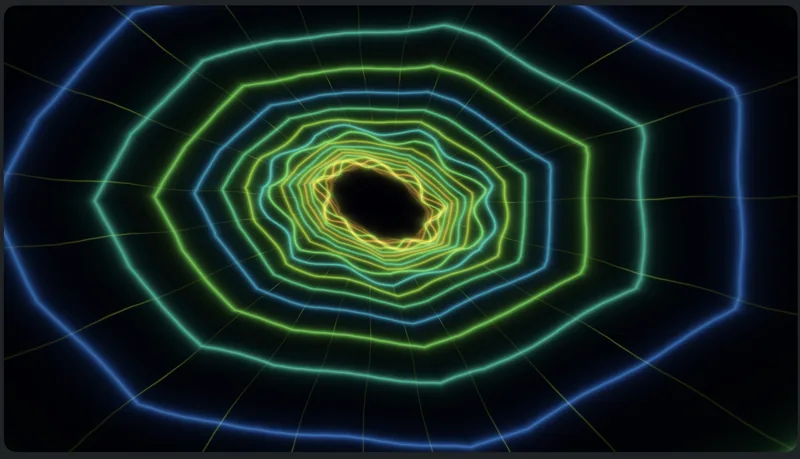
Neon Pulse
Fifteen evolving neon variations with geometric passages and light structures.
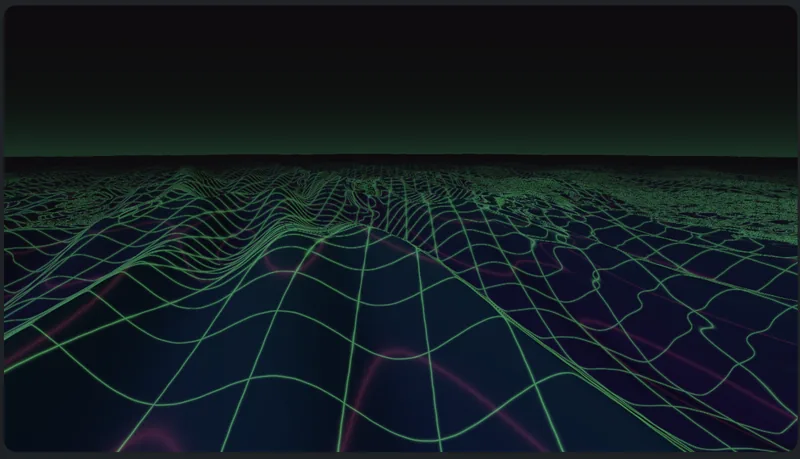
Wave Terrain
Waveform landscapes, moving meshes and kick-driven ripples.
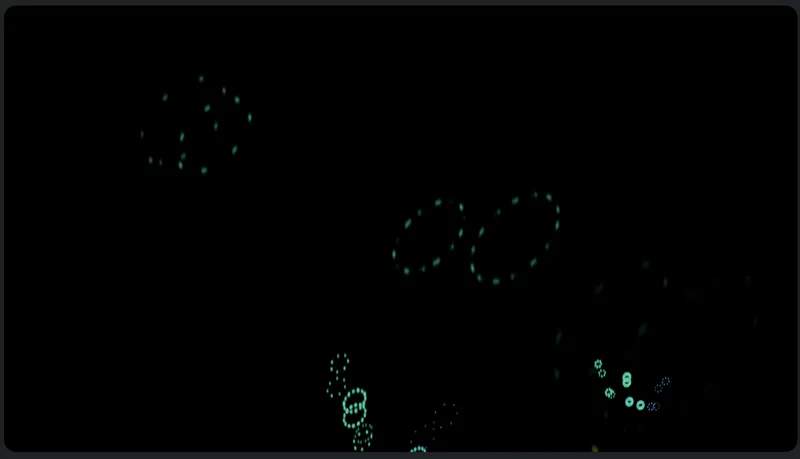
Particle Storm
Music-reactive embers that fade and respawn, with an adjustable particle limit.
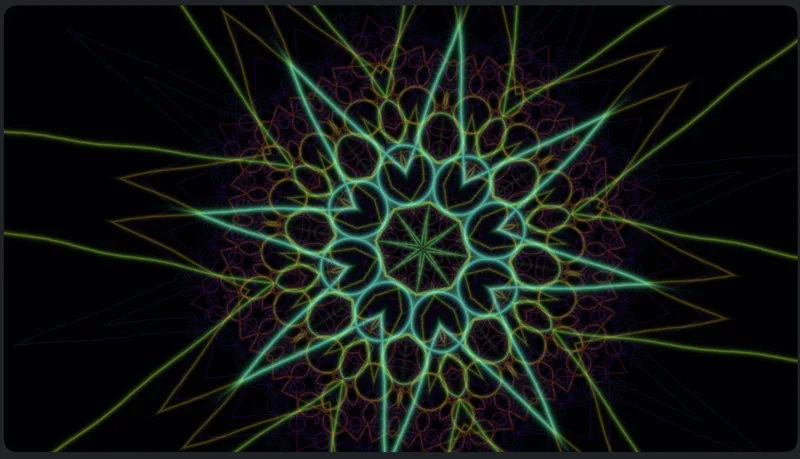
Kaleido Reactor
Folding, rotating and evolving kaleidoscopic geometry.
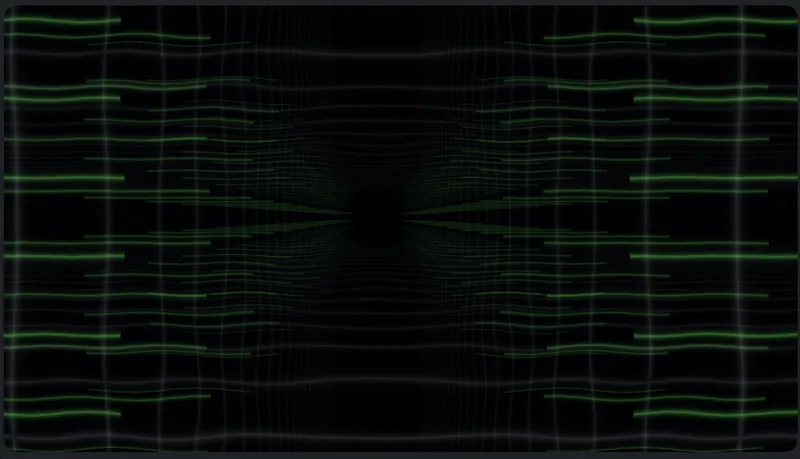
Warehouse
Procedural architectural chambers and geometric environments.

Data Flux
Your words and phrases drawn, fragmented and animated with the music.
Aurora Flow
Flowing layers of coloured light curtains.
Circuit Breaker
Growing arrows and vectors that collide, branch and leave fading trails.
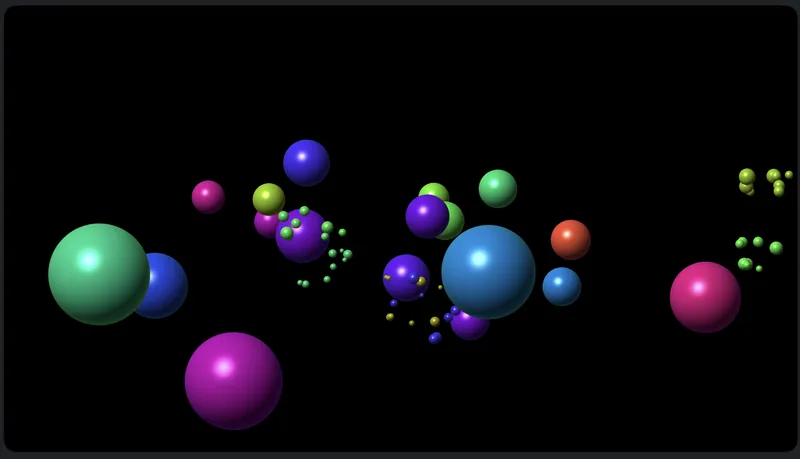
Collision Balls
Differently sized and coloured 3D balls that bounce, collide and burst.
Beat Blocks 3D
Music-driven falling blocks, with completed rows exploding into particles.
Alien Dance
Animated alien variations, coloured lasers and particle explosions following musical hits.
Gravitational Lens
Expanding, tumbling light rings and warped starfields.
Plasma Bloom
Branching electrical plasma arcs inside a glass-like globe.
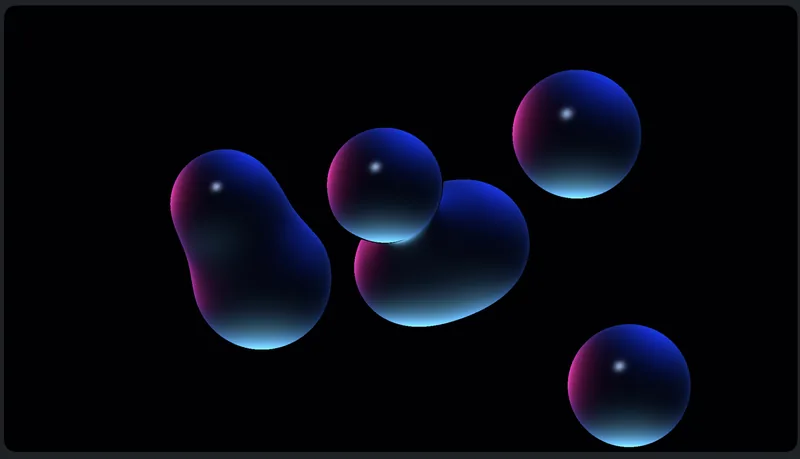
Lava Flow
Glossy, oil-like bubbles that merge, stretch and separate with musical energy.
Prism Storm
Moving dimensional crystals and luminous prism structures.
Sonic Loom
Spectral ribbons woven into evolving patterns.
Flux Core
Charged light rings moving around an evolving energy core.
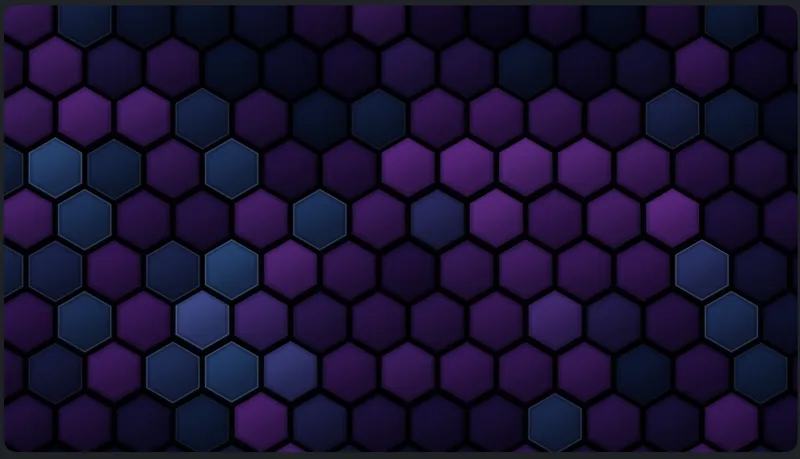
Hex Panels
Raised hexagonal tiles with musical lighting and impact ripples.

Shockwave
Expanding musical impact rings through cosmic particles.
Storm Skies
Energy-driven transitions between calmer skies, clouds, rain and lightning.
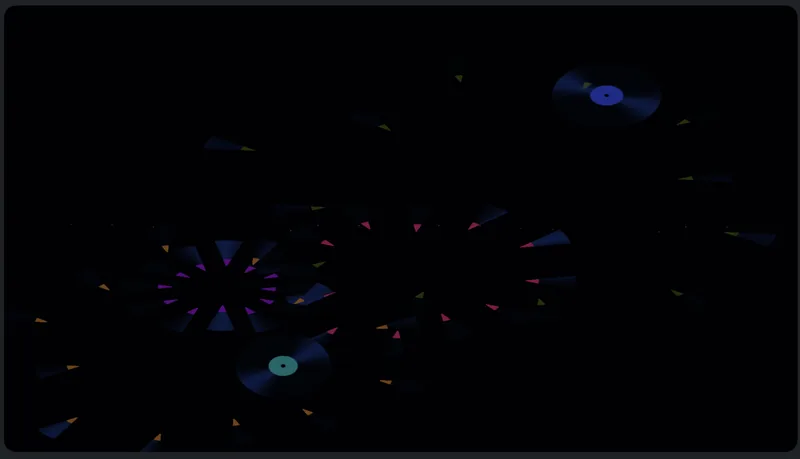
Vinyl Fleet
Flying, spinning records that shatter into fragments on musical impacts.
Disco Lights
Colourful moving downlights and off-screen mirror-ball reflections.
Music-reactive controls
Follow the audible mix
Visuals are planned to respond to the master output, including deck levels, EQ, filters, effects, crossfader and master processing. Headphone cue and preview audio are excluded.
Eight spectrum bands
Adjust eight frequency controls covering 20 Hz to 20 kHz. Choose separate-band or blended-spectrum mapping, smoothing, global settings, module overrides and bass-weighted defaults.
Bass, kicks and transients
Separate low-frequency response and rhythmic hit detection help visuals follow sustained bass and individual impacts. Playback, pauses, tempo changes, loops, seeks and transitions should remain in step.
Particle density
Particle Storm is planned to offer a 4,096–16,384 particle limit, starting at 4,096, alongside reset controls.
Visual sequences and saved Sets
Choose and order styles
Select multiple modules, arrange their order and cycle automatically using musical intervals. Choose a direct switch or crossfade between styles.
Variations and overlays
Generate new variations or retain saved seeds. Global text and track overlays remain independent of module changes.
Set-linked recipes
Save a visual recipe and sequence with a Set. Use visuals during manual mixing, LIVE DIRECTOR, Set Director and AI-created planned Sets.
Continuous animation
Changing inspector tabs or navigating the app is planned to preserve the renderer, sequence and current visual state.
Track information and custom text
Artist and title LCD
Show artist and title in digital LCD-style lettering, with scrolling for long names, Unicode fallback and system-font selection. Track cards default to fading after 15 seconds.
Numbered track announcements
In a Set, show the incoming occurrence number, artist and full title when that track becomes audible. Repeated tracks retain their separate positions. Preloading, headphone audition and aborted unheard transitions should not trigger an announcement.
Pause and replay
Outside a Set, use NOW PLAYING. Pause freezes scrolling and fading; Show current track replays the information without changing playback. Preview and export use the same announcement timeline.
Your own words
Add up to ten words or phrases, initially A/B TEKNIQ and VFX DEMO. Use a searchable system-font picker and fallback fonts. Control custom text and track information independently across modules, preview and export.
Video backgrounds
Up to ten local clips
Choose, order and loop local videos silently behind the generated FX. Adjust background visibility from 0% to 100% independently of FX opacity.
Framing and layers
Handle clip orientation and aspect-fill framing, keeping video behind effects and text. Include backgrounds in exported movies.
Local media access
Restore saved permissions or relink missing clips. Unsupported or corrupt clips should not interrupt music. Variable-frame-rate and HDR support remain subject to release verification.
Preview and presentation
Landscape and portrait
Use 16:9 landscape or 9:16 portrait framing in a dedicated Visuals workspace, with an optional preview in Performance.
Presentation output
Stage-only full-screen presentation is planned. Change framing without resetting audio, animation or the track display; music should continue if an external display disconnects.
Motion and access controls
Reduce Motion, visual-intensity restraints, keyboard operation and VoiceOver support are part of the planned scope. Intensity controls do not guarantee suitability for every photosensitive viewer.
Mac and iPad
Main-app integration targets macOS 26 and iPadOS 26. iPad behaviour and external-display support need their own implementation and physical-device acceptance checks.
Video export
Audio and visuals together
Export a source track with its sequence and audio, or a complete planned mix with its actual transition schedule, mixed audio and numbered track announcements.
Formats and social presets
Plan for H.264 MP4 and supported MOV/HEVC options, landscape and portrait output, TikTok, YouTube Shorts and Instagram Reels presets, a smaller-file social preset and native-rendered HQ options.
Full length or excerpt
Choose full-track or explicit excerpt durations. Include backgrounds, custom text and track LCD composition. Capture the selected Set and visual recipe when export starts.
Export controls
Fast mode by default, optional Cool mode, progress, approximate time remaining, measured export speed and cancellation. Protect existing destination files and clean up temporary output.
Long mixes and live playback
Keep memory bounded, give live playback priority and reuse rendered audio between landscape and portrait jobs where practical. Long-export endurance and audio/video alignment require acceptance testing.
Improvised performances
A saved plan alone cannot reproduce an improvised live mix. Faithful export requires captured master audio and the actual timed track and visual events; this remains an integration requirement, not an existing recording guarantee.
Preferences, performance and feedback
Remember your setup
Retain mappings, module overrides, sequences, seeds, custom words, backgrounds and output choices. Import companion settings explicitly and preserve existing library, cue and Set data.
Controlled restoration
Restore media access or ask for relinking. Restoring preferences must not automatically start audio or an export.
Adaptive rendering
Bound GPU and decoder work, reduce visual quality under memory or thermal pressure, and keep music running if visual observations are dropped.
Diagnostics and feedback
Plan for frame-timing and musical-response diagnostics, plus user-invoked feedback capture with a chosen save location. No automatic upload of music, video or library metadata.